SharePoint lets Nessie import documents from your Microsoft 365 teams, SharePoint sites, and OneDrive.
How to connect:
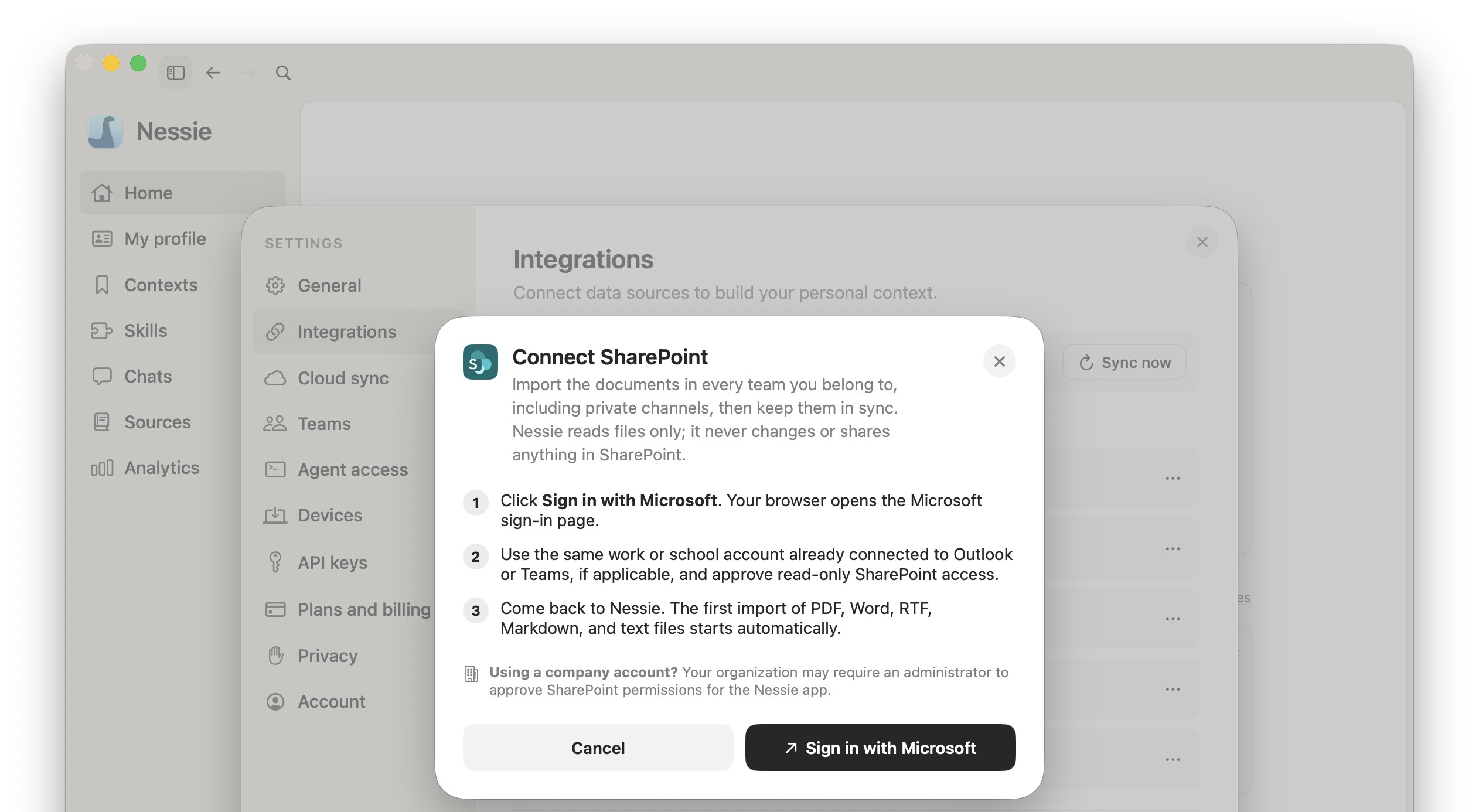
- Go to Settings → Integrations
- Click Add integration
- Select SharePoint
- Click Sign in with Microsoft. Your browser opens the Microsoft sign-in page
- Use the same work or school account you connected to Outlook or Teams, if any, and approve read-only SharePoint access
- Come back to Nessie. The first import starts automatically
Requirements:
- A Microsoft work or school account with SharePoint or OneDrive
- Your organization may require an administrator to approve SharePoint permissions for the Nessie app
Nessie requests read-only access. It never changes or shares anything in SharePoint.
What gets imported:
- Document libraries for every team you belong to. Standard channels appear as folders, and private and shared channels appear as their own folders
- SharePoint sites you can access, and your OneDrive
- PDF, Word, RTF, HTML, Markdown, and text files, plus Excel, PowerPoint, and other Office files, which are converted to PDF for reading
- The folder structure, so libraries stay browsable in Library
Files larger than 50 MB, site pages, Loop components, OneNote notebooks, Visio files, and videos are skipped.
How sync works: Nessie checks SharePoint every 15 minutes. Unchanged files are not downloaded again. Files you delete in SharePoint are removed from Nessie, and moved files are re-imported at their new location.
One Microsoft account: Outlook, Microsoft Teams, and SharePoint share one Microsoft sign-in. Use the same work or school account for all three; Nessie only asks Microsoft for the extra permissions a new integration needs.
Reconnecting: If Microsoft access expires, the integration shows Session expired with a Reauthenticate button.
Data storage: Your documents stay in SharePoint; Nessie only reads them. Imported documents are stored locally by default. If Cloud Sync is enabled, synced documents can be stored in Nessie Cloud so they are available to MCP, Teams, agents, and your other devices. Your Microsoft sign-in stays in the macOS Keychain on the Mac where you connected the source. Removing the integration deletes the imported files from Nessie and changes nothing in SharePoint.