1. Get Nessie Download and open the Nessie app.
2. Create your account Sign in with Google to create your Nessie account.
3. Choose your privacy mode During onboarding, you'll choose between:
- Privacy Mode — Your conversation content is not used to improve Nessie's systems. When Nessie needs to process content for an app feature, the content is used only to provide that feature.
- Help Improve Nessie — Share usage patterns along with generated artifacts and relevant snippets of your AI conversation transcripts to help us improve the product. You can switch at any time in Settings.
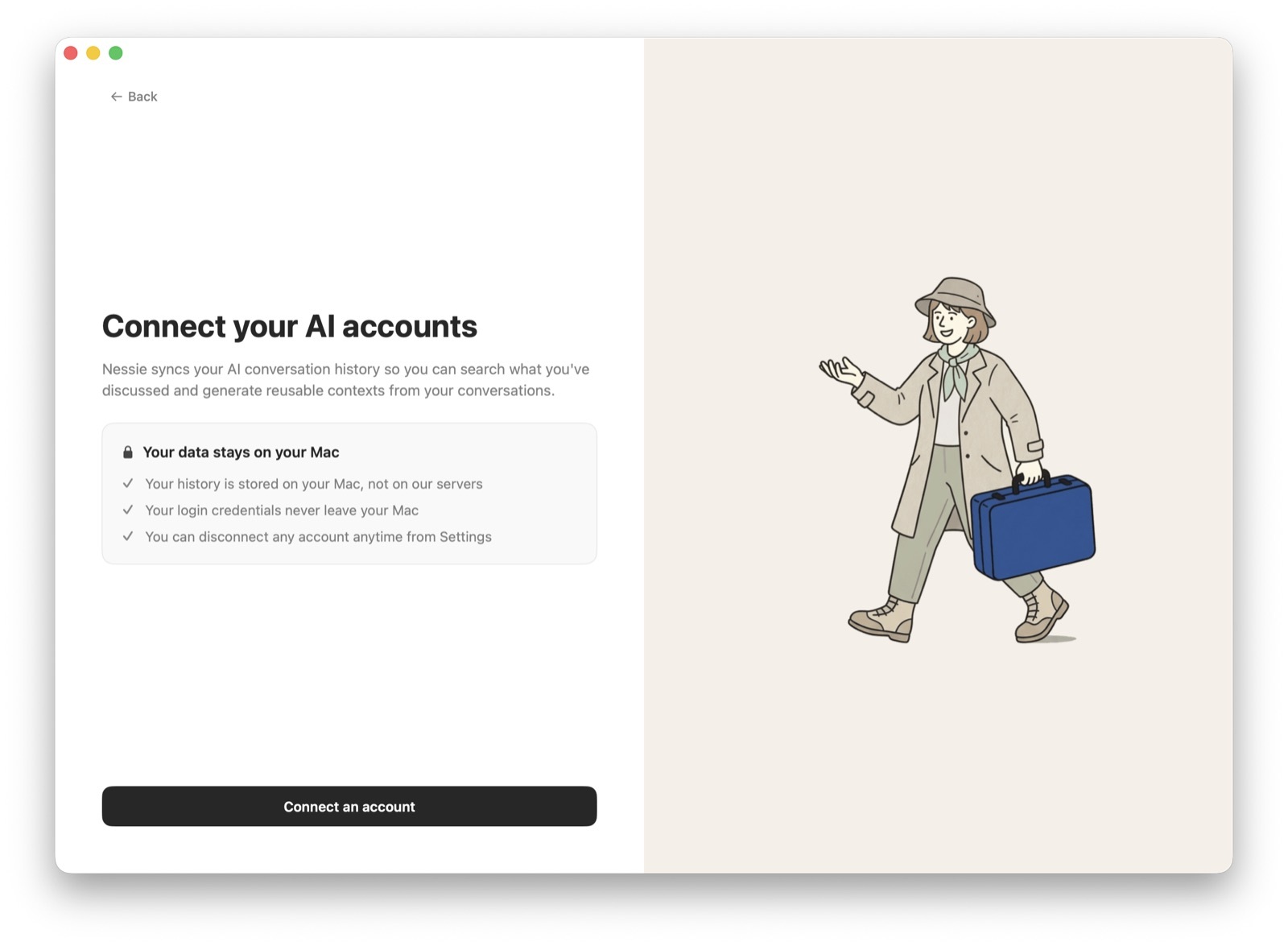
4. Connect your integrations Add accounts and local sources from ChatGPT, Claude, Gemini, Grok, Grok Bot, Manus, Perplexity, Claude Code, Claude Cowork, Codex, OpenCode, Cursor, Antigravity, Hermes, OpenClaw, Local Folder, Obsidian, Apple Notes, Granola, Read AI, Gmail, Outlook, Microsoft Teams, or SharePoint. Nessie will ingest all available history for each source, then keep syncing new activity. See the Integrations section for setup details on each platform.
5. Choose where your library is available
- By default, your conversation history is stored locally on your Mac
- If you enable Cloud Sync, your library is stored in Nessie Cloud so it can sync across devices and be used by MCP, Teams, and API-key devices
- Your login credentials never leave your Mac
- You can disconnect any account anytime from Settings
6. Wait for your first sync Nessie will ingest your available history in the background. This may take a few minutes depending on how many conversations, sessions, and files each integration can access. Your profile will start building automatically.