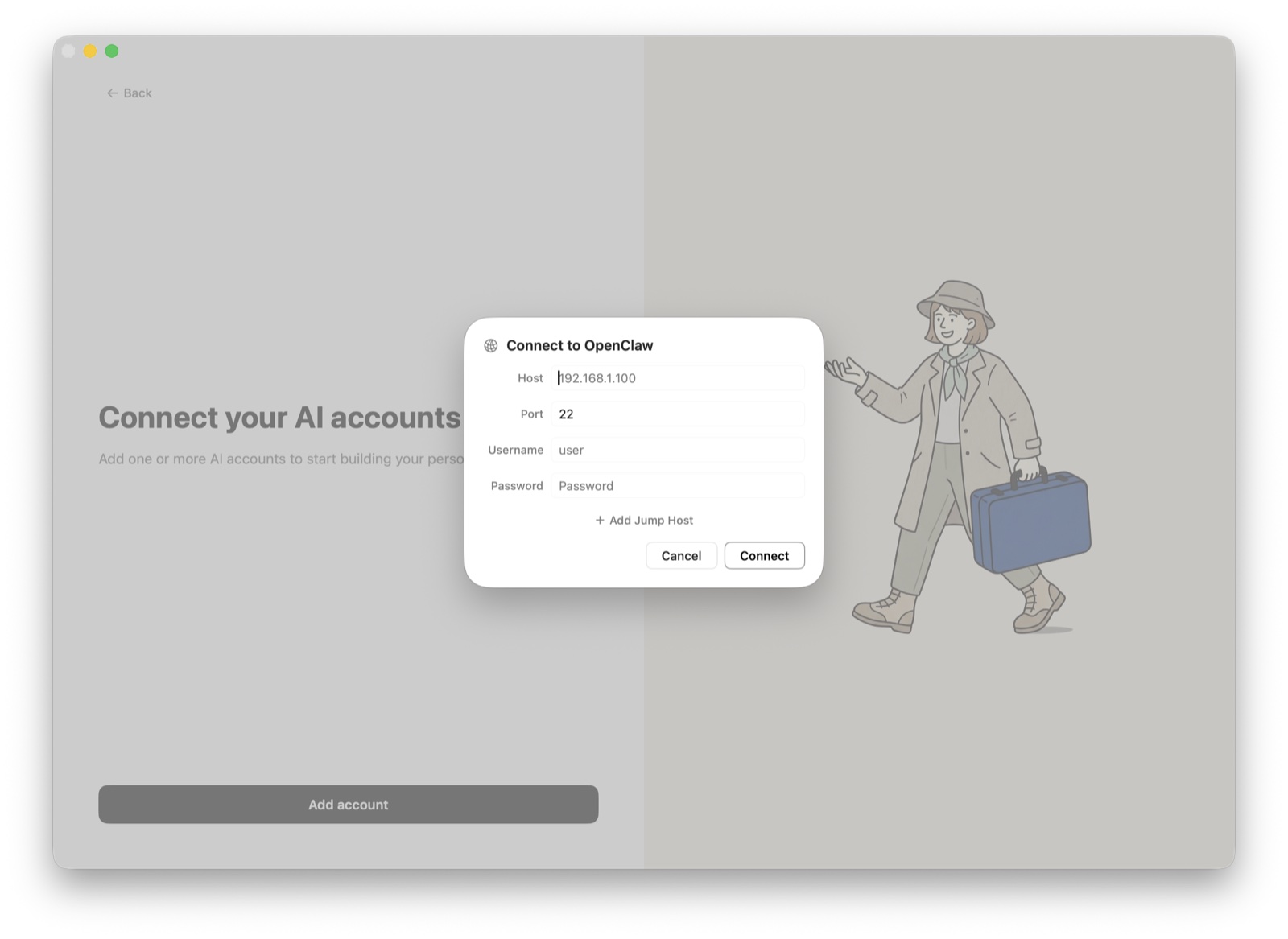
How to connect: OpenClaw uses SSH to connect to the machine where your OpenClaw agent runs. Your Mac must be on the same network as your OpenClaw host.
- Go to Settings → Integrations
- Click Add integration
- Select OpenClaw
- Enter your Host (the hostname or IP of the machine running OpenClaw)
- Enter your Port (SSH port, default: 22)
- Enter your Username (your SSH username)
- Enter your Password (your SSH password)
- (Optional) If your machine requires a jump host (bastion), enter the jump host details
- Click Connect
How sync works:
Nessie connects via SSH and reads all available OpenClaw session files from ~/.openclaw/agents/main/sessions/ on the remote machine. It parses the JSONL session files to extract conversations, then keeps newly created sessions synced.
Requirements:
- Your Mac and the OpenClaw host must be on the same network (or reachable via a jump host)
- SSH access enabled on the machine running OpenClaw
- OpenClaw session files at the default path
Troubleshooting:
- Make sure your Mac can reach the OpenClaw host on the network
- Verify your credentials work with a regular SSH client first
- If using a jump host, ensure both connections are reachable
Data storage: Your OpenClaw history is stored locally by default. If Cloud Sync is enabled, synced conversations can be stored in Nessie Cloud so they are available to MCP, Teams, agents, and your other devices. Your SSH credentials never leave your Mac, and you can disconnect anytime from Settings.