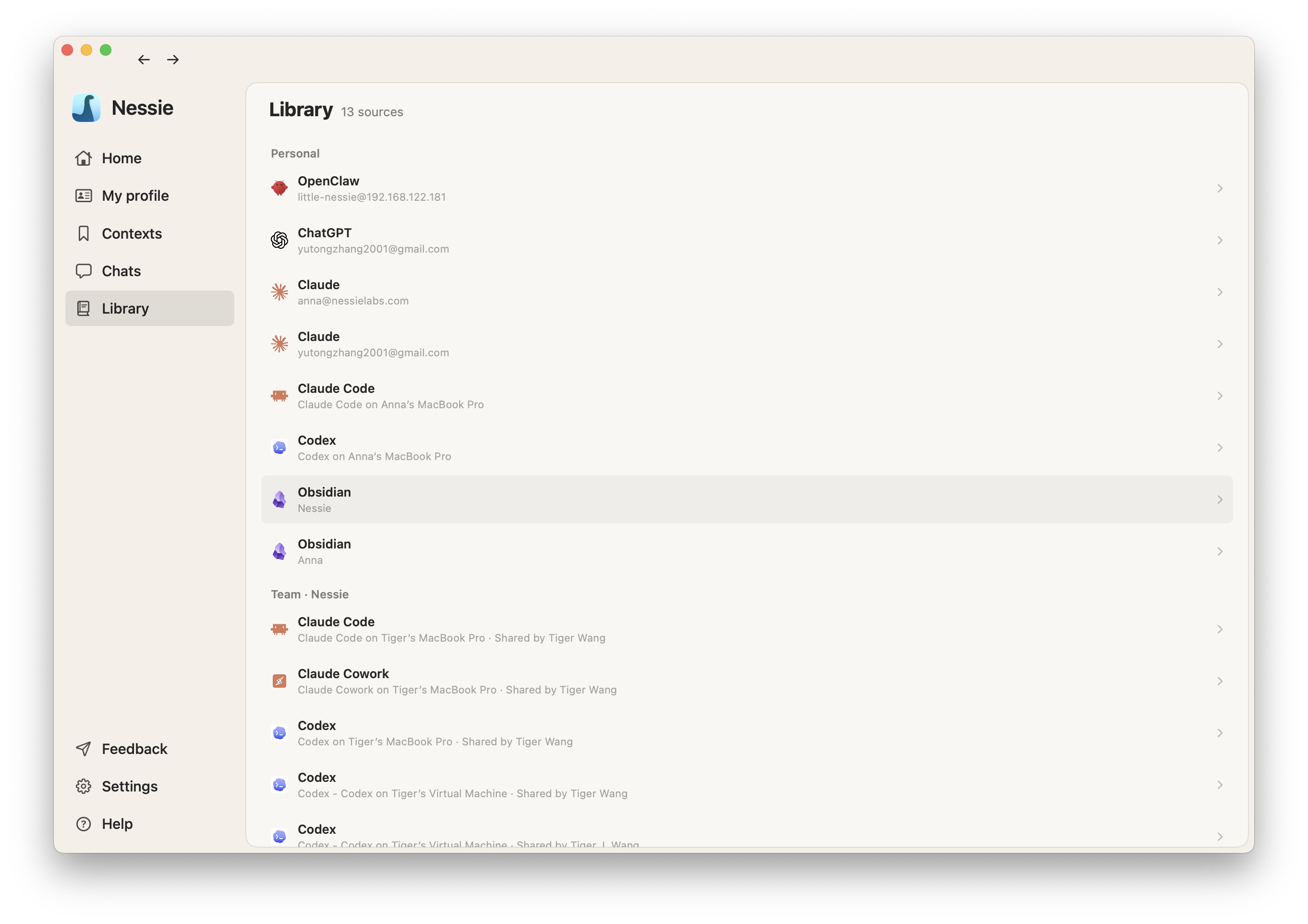
The Library view shows everything Nessie can read: your connected accounts, local agent sources, synced conversations, contexts, and resources other people have shared with you.
Browsing:
- Sources are grouped by owner and scope, including personal, team, and directly shared resources
- Each integration root shows the connected platform, device, account, or teammate it came from
- Click a source root to browse the conversations or child sources inside it
- A directly shared conversation or agent session may appear as its own readable item instead of inside a shared integration root
- Shared context folders appear inside the Contexts area and may contain work owned by several contributors
- Use source labels and counts to see which integrations are active and how much content they contain
Viewing a source: Click any source or conversation to open it. Conversation sources show the complete message history, including your messages, AI responses, timestamps, tool use, and source metadata when available.
Using Library sources: Select sources when chatting with Nessie, generating a context, or asking an agent to search a specific account, teammate, device, or integration root.
Links and sharing:
- Use Copy Link on a context, folder, conversation, or source to copy a private Nessie link to that exact item. The link does not grant access; the recipient still needs an applicable personal or team grant.
- Use Share on a source root, repository, or individual session to choose who can read it. Broader shares can be narrowed with repository or session exceptions.
Shared resources appear after Cloud Sync is enabled and the owner grants access. A directly shared item may also require the owner to send you its private link.