Local Folder lets Nessie import documents from any folder on your Mac, such as a research folder, a project's specs, or exported reports.
How to connect:
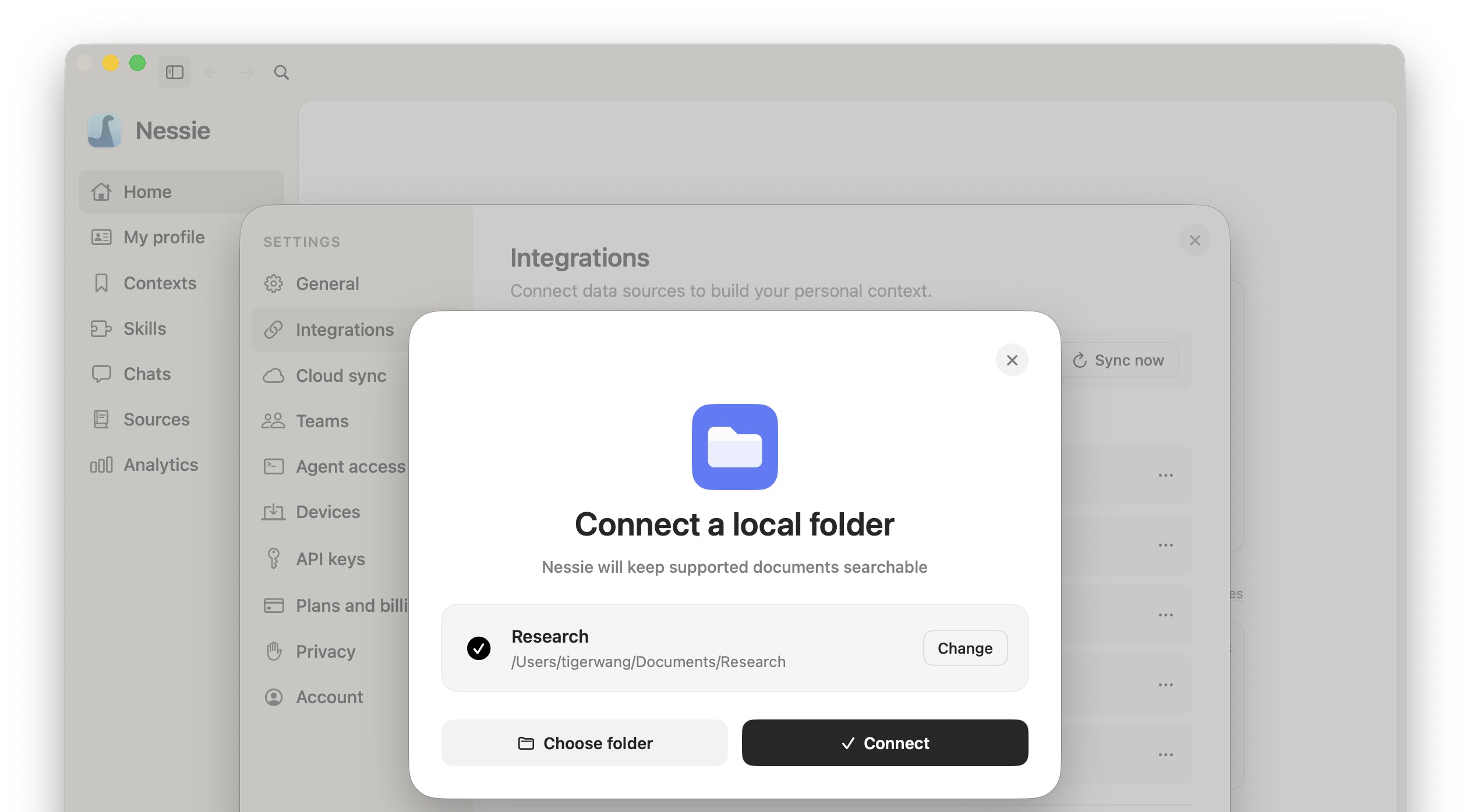
- Go to Settings → Integrations
- Click Add integration
- Select Local Folder
- Click Choose folder and select the folder you want to import
- Click Connect
What gets imported:
- PDF, Word (.docx and .doc), RTF, HTML, Markdown, and plain text files
- The folder hierarchy, so subfolders stay browsable in Library
- Original PDF, Word, RTF, and HTML files are kept so you can preview them in Nessie
Nessie skips hidden files and folders, symlinks, app bundles, node_modules and DerivedData folders, and files larger than 50 MB. Text is read from PDFs as-is; scanned PDFs without a text layer are not OCR'd.
How sync works: Local Folder is a local integration — no sign-in required. Nessie rescans the folder every 15 minutes and only re-reads files that changed. Deleted files are removed from Nessie after the next full scan, and renamed or moved files are re-imported at their new path.
If Nessie loses permission to read the folder, the integration shows Can't access this folder. Remove the folder from Settings and add it again to restore access.
Multiple folders: You can connect as many folders as you like. Each folder appears as its own source root in Library, MCP, and CLI discovery. You cannot connect your entire startup disk.
Data storage: Your files stay where they are; Nessie only reads them. Imported documents are stored locally by default. If Cloud Sync is enabled, synced documents can be stored in Nessie Cloud so they are available to MCP, Teams, agents, and your other devices. You can disconnect a folder anytime from Settings.