Microsoft Teams lets Nessie import your chats and channel conversations so decisions made in Teams are searchable alongside the rest of your work.
How to connect:
- Go to Settings → Integrations
- Click Add integration
- Select Microsoft Teams
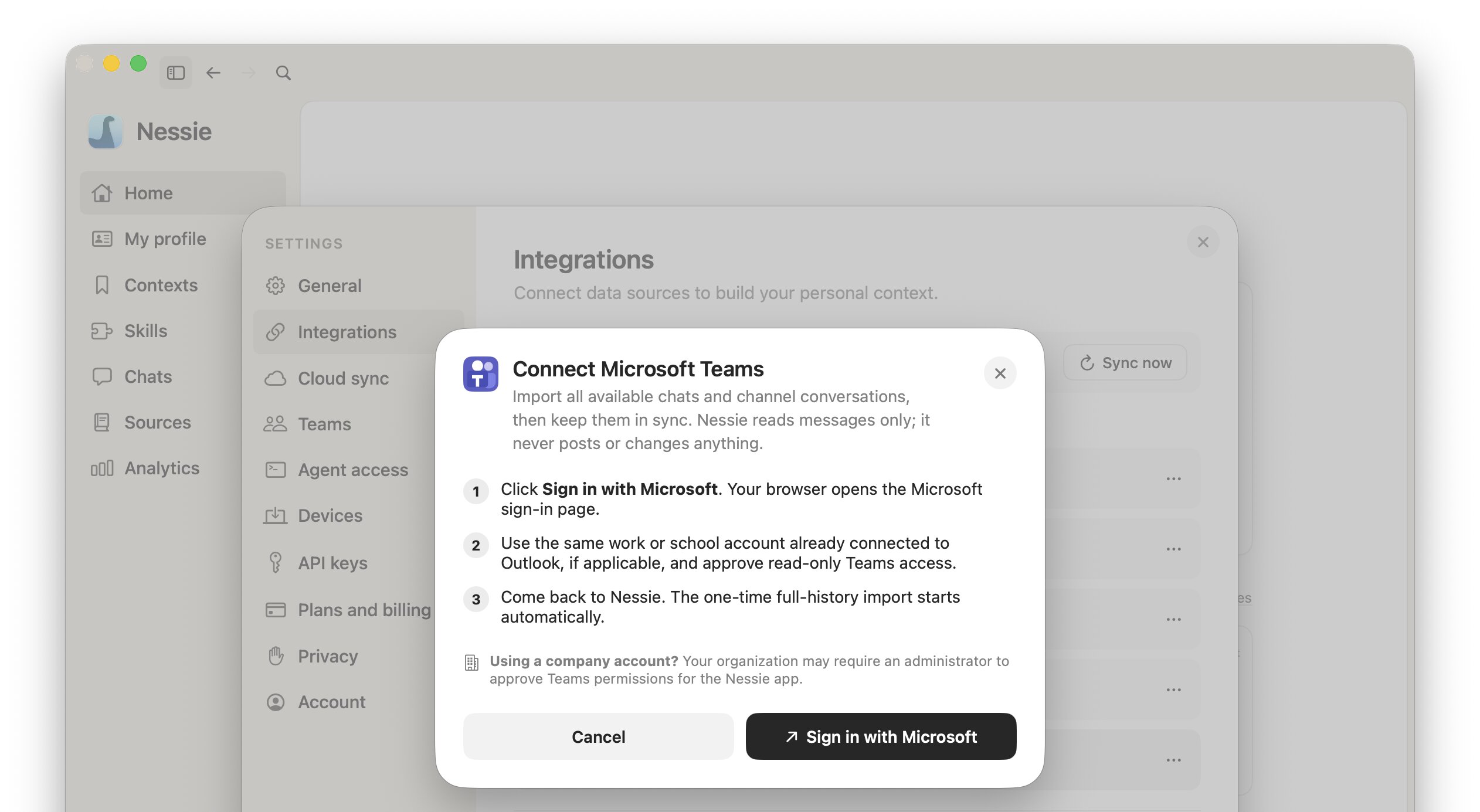
- Click Sign in with Microsoft. Your browser opens the Microsoft sign-in page
- Use the same work or school account you connected to Outlook, if any, and approve read-only Teams access
- Come back to Nessie. The full-history import starts automatically
Requirements:
- A Microsoft work or school account with Microsoft Teams
- Your organization may require an administrator to approve Teams permissions for the Nessie app
Nessie requests read-only access. It never posts or changes anything in Teams.
What gets imported:
- Your 1:1 and group chats
- Every team you belong to, with its channels and threads, including shared channels
- Message text, @mentions, and participants. Files and attachments shared in messages are not imported
How sync works: The first sync imports your full Teams history. After that, Nessie checks for new and edited messages every 15 minutes. Deleted messages are removed from Nessie.
One Microsoft account: Outlook, Microsoft Teams, and SharePoint share one Microsoft sign-in. Use the same work or school account for all three; Nessie only asks Microsoft for the extra permissions a new integration needs.
Reconnecting: If Microsoft access expires, the integration shows Session expired with a Reauthenticate button.
Data storage: Your Teams messages are stored locally by default. If Cloud Sync is enabled, synced messages can be stored in Nessie Cloud so they are available to MCP, Teams, agents, and your other devices. Your Microsoft sign-in stays in the macOS Keychain on the Mac where you connected the source. You can disconnect anytime from Settings.