Gmail lets Nessie import your email and labels so your agents can find what was said, decided, or sent over email.
How to connect:
- Go to Settings → Integrations
- Click Add integration
- Select Gmail
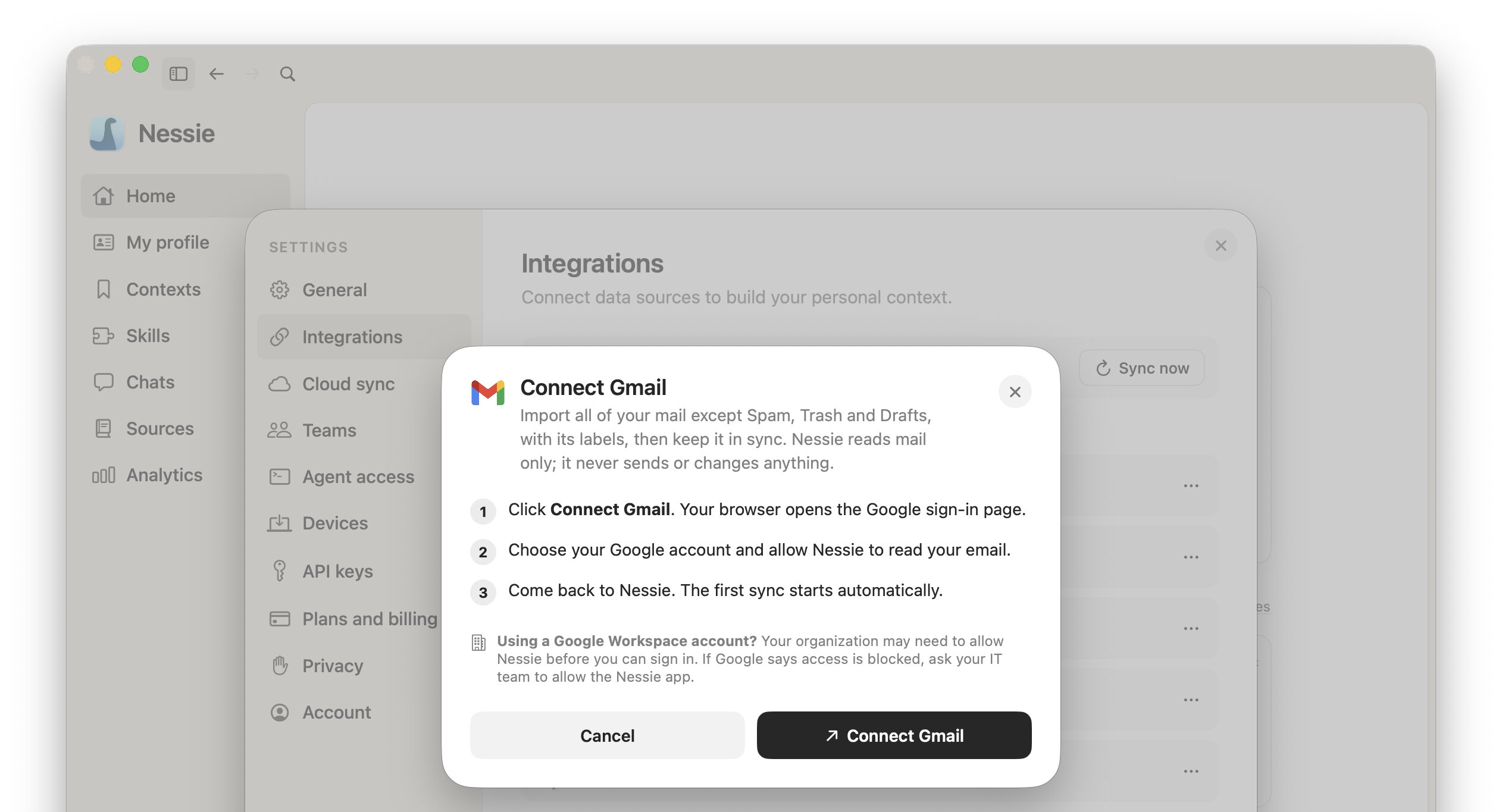
- Click Connect Gmail. Your browser opens the Google sign-in page
- Choose your Google account and allow Nessie to read your email
- Come back to Nessie. The first sync starts automatically
Requirements:
- A Gmail or Google Workspace account
- If you use a Google Workspace account, your organization may need to allow Nessie before you can sign in. If Google says access is blocked, ask your IT team to allow the Nessie app
Nessie requests read-only access. It never sends, deletes, or changes email.
What gets imported:
- All of your mail except Spam, Trash, and Drafts, grouped into threads
- Your labels, including Inbox, Sent, Starred, Important, inbox categories, and your own nested labels
- Email bodies as searchable text, with the original formatting kept for reading in Nessie
- Attachment names, types, and sizes. Attachment files are not downloaded
How sync works: Nessie checks Gmail for new mail and label changes every 15 minutes. Large mailboxes import gradually, up to 1,000 threads per sync, so the integration may show More will sync later until the backfill finishes. New mail keeps arriving while older mail is still importing. Mail you move to Trash or Spam leaves Nessie and comes back if you restore it.
Multiple accounts: You can connect more than one Gmail account, such as work and personal. Each mailbox becomes its own source root.
Reconnecting: If Google access expires or is revoked, the integration shows Session expired with a Reauthenticate button. Reconnecting keeps your sync progress. Sign in with the same Google account.
Data storage: Your email is stored locally by default. If Cloud Sync is enabled, synced email can be stored in Nessie Cloud so it is available to MCP, Teams, agents, and your other devices. Your Google sign-in stays in the macOS Keychain on the Mac where you connected the source. Removing the integration does not revoke Nessie's access in Google; you can do that from your Google Account's third-party access page.